The Gap Between the Box and Your Screen
You bought a 4K TV, you pay for a fast internet plan, and you subscribed to a major streaming service. By every measure on the packaging, you should be watching pristine, cinema-quality video. So why does it sometimes look muddy, blocky, or just off?
The honest answer is that picture quality during streaming isn't determined by any single factor - it's the product of a chain: the source encode, the streaming server's current load, your home network, your router's position, and finally your TV's own processing. A weak link anywhere in that chain degrades the final image. Understanding where your chain breaks is how you fix it.
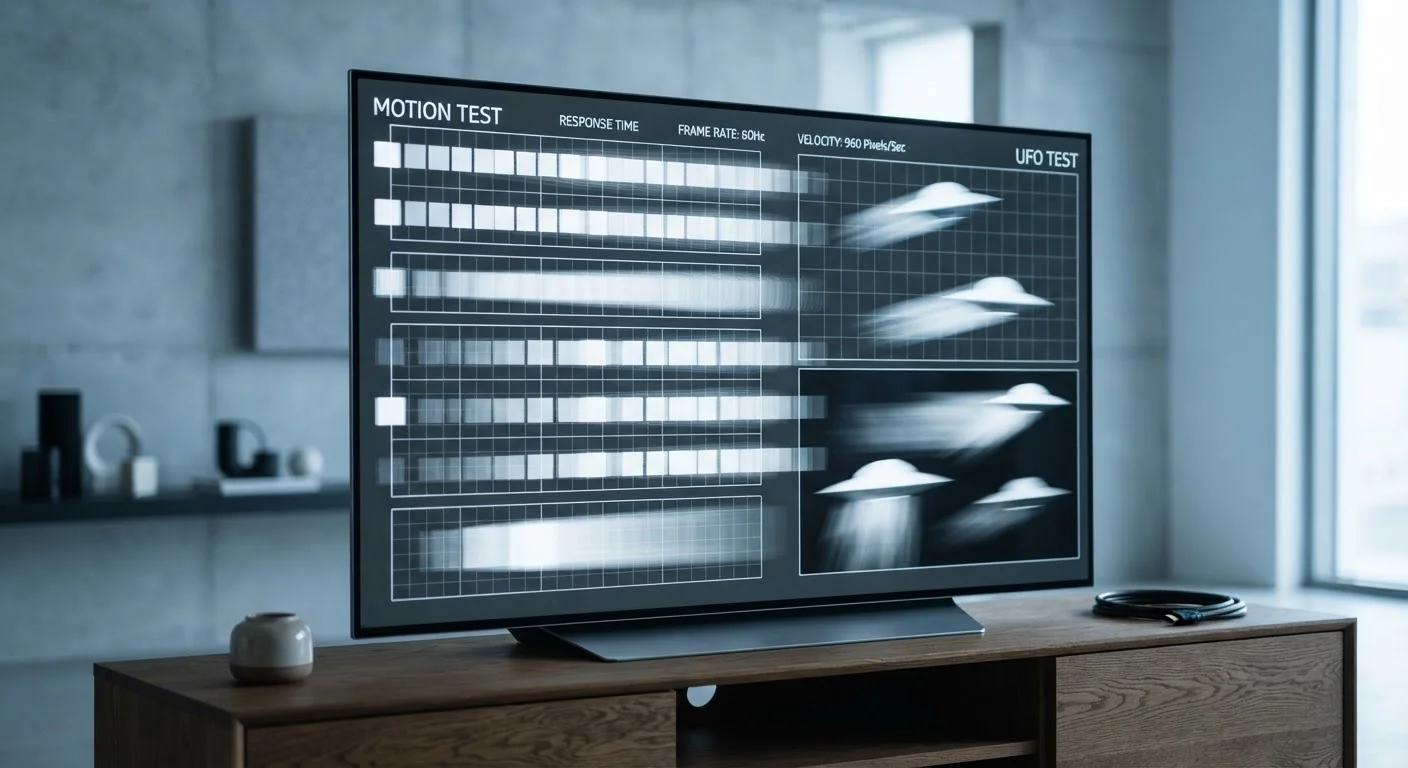
This is also worth separating from TV hardware myths. Specs like refresh rate matter less than you might think - our refresh rate explainer covers why. The bigger culprits in real-world streaming quality are usually invisible to the naked eye until things go wrong.
Common Mistakes That Silently Kill Streaming Quality
Most streaming picture problems trace back to a handful of repeatable errors - not broken equipment, but misunderstood assumptions. Here's where things typically go wrong and what you can actually do about each one.
Assuming your advertised internet speed is what your TV actually gets.
Why it happens: Internet providers market peak or theoretical speeds, not the real-world throughput any single device receives - especially during evening hours when network congestion is highest.
Relying on Wi-Fi when the router is far away or obstructed.
Why it happens: Walls, floors, appliances, and distance all degrade Wi-Fi signal strength. A router two rooms away may show full bars on a phone while delivering inconsistent bandwidth to a TV.
Ignoring that streaming services compress video heavily before it reaches you.
Why it happens: Consumers focus on TV specs and internet speed, but overlook that every major streaming platform uses lossy video compression - encoding like H.264 or H.265 - to reduce file size for delivery. This compression introduces artifacts that no amount of bandwidth can reverse.
Leaving the TV on its default 'vivid' or 'dynamic' picture mode.
Why it happens: TVs ship in a mode designed to look striking on a bright showroom floor, not in a home. This mode boosts sharpness and contrast artificially, which can make compression artifacts and motion blur look worse on streaming content.
Assuming 4K content is always streaming at full 4K quality.
Why it happens: Streaming services dynamically adjust bitrate based on your connection speed. What starts as 4K may drop to 1080p or lower mid-stream if bandwidth fluctuates, often without any on-screen notification.
Your Subscription Tier Limits Your Resolution
Many streaming platforms restrict 4K HDR content to their highest-priced plans. If you're on a standard or ad-supported tier, the stream itself may be capped at 1080p or lower - no TV or internet upgrade will change that. Check your plan's specifications before assuming the problem is your hardware.
It's also worth noting that resolution is only part of the picture quality equation. HDR - which controls the range of brightness and color in an image - can be toggled off by a mismatch between your TV's settings and the signal it's receiving. Check that your TV's HDMI ports are set to accept HDR signals, and that the streaming app itself has HDR enabled in its settings. For a broader explanation of what these specs actually mean in practice, see our TV resolution and HDR explainer.
15-25 Mbps
Sustained speed needed per device for 4K streaming
Most major streaming services publish minimum bandwidth requirements for Ultra HD playback; these figures reflect commonly published thresholds as of recent guidance.
~50%
Of home Wi-Fi issues are caused by router placement
Industry networking guidance consistently identifies physical obstructions and distance as the leading causes of in-home wireless performance degradation.
What You Can Actually Control
Some factors - like how aggressively a service compresses its library titles - are outside your control. But the majority of real-world streaming quality problems are fixable at home without any new hardware purchases.
- Test your device-level speed, not your router speed, to understand what your TV is actually working with.
- Use a wired connection whenever possible. A $15 Ethernet cable from your router to your streaming device eliminates the single biggest source of streaming instability.
- Adjust your app's playback settings to prioritize quality over data savings - especially on home broadband where data caps are less common.
- Change your TV's picture mode to Cinema or Movie, and turn off any artificial sharpening or motion smoothing your TV applies by default.
Streaming picture quality sits at the intersection of networking, software, and display technology. Treating it as purely a TV hardware problem - or purely a speed problem - leads to frustration and unnecessary spending. Small, methodical adjustments to each part of the chain will get you far closer to what the box promised.
This article is for informational purposes only. Specific streaming quality features, plan details, and device capabilities vary by provider and may change over time. Consult your service provider or device manufacturer for current specifications.