Why Laptop Specs Feel So Confusing
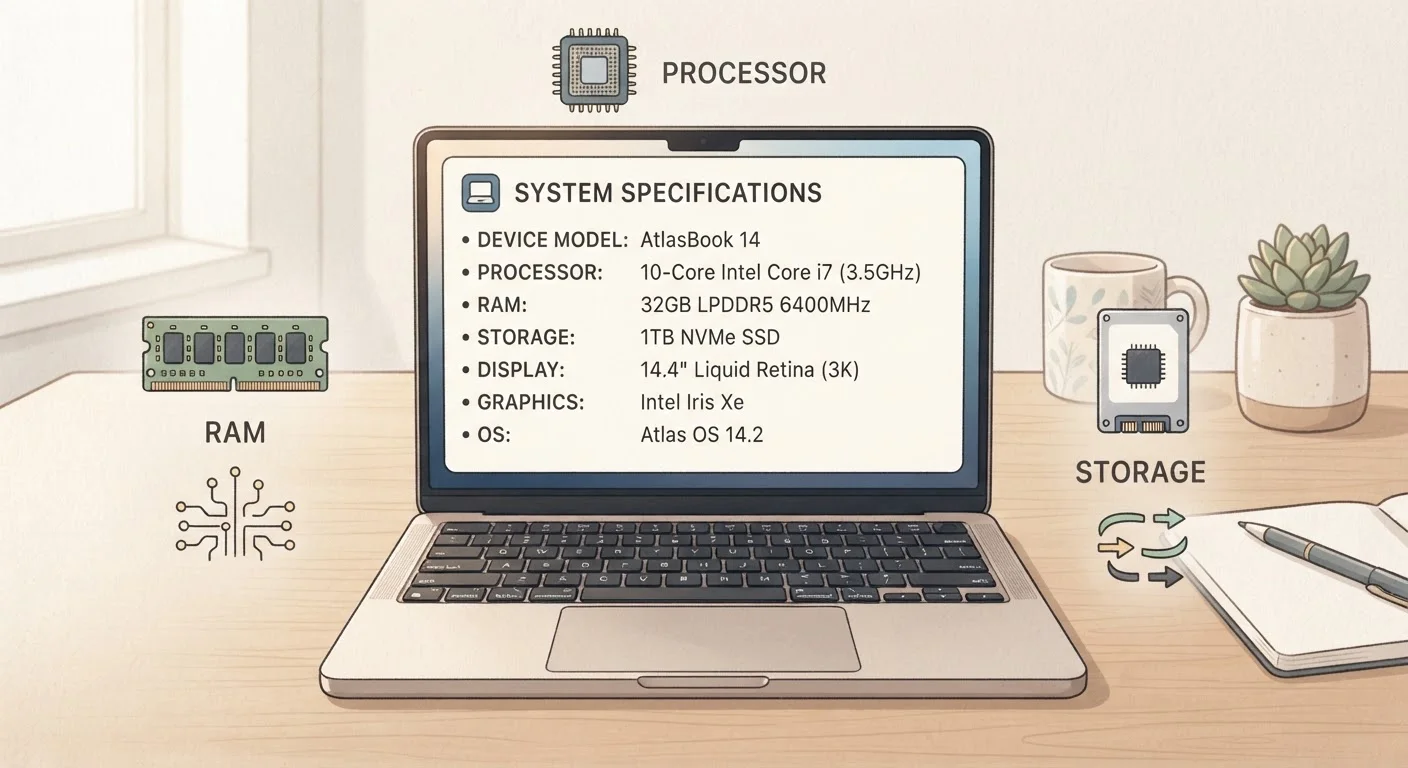
Walk into any electronics retailer - physical or online - and you'll find laptop listings packed with strings of letters and numbers: 16 GB DDR5 RAM, 512 GB NVMe SSD, Intel Core i7-1355U. To someone buying their first laptop, these labels can feel like a foreign language designed to overwhelm rather than inform.
The good news is that you don't need to understand every technical detail. You just need to know what three key components do and what numbers matter for the way you actually use a computer. This guide cuts through the jargon and explains RAM, storage, and processors in plain terms - so you can shop with confidence rather than guesswork.
For a broader look at electronics terminology, the Consumer Electronics Glossary is a helpful companion reference.
RAM
Random Access Memory is your laptop's temporary working space. It holds data for programs currently in use, so more RAM means more tasks can run smoothly at the same time.
SSD
A Solid State Drive is a storage device that uses flash memory chips to save files permanently. It's faster and more durable than older spinning hard drives.
HDD
A Hard Disk Drive is an older type of storage that uses spinning magnetic platters. It tends to be slower and more fragile than an SSD.
CPU
The Central Processing Unit, or processor, is the chip that carries out every instruction your laptop executes - from opening apps to running calculations.
Clock Speed (GHz)
Clock speed measures how many processing cycles a CPU completes per second. A higher number generally means faster performance, though chip design also plays a major role.
Core
A core is an individual processing unit inside a CPU. Multiple cores allow a processor to handle several tasks at the same time more efficiently.
RAM: Your Laptop's Short-Term Memory
RAM - which stands for Random Access Memory - is your laptop's working space. Think of it like a physical desk: the bigger the desk, the more tasks you can spread out and work on at once without constantly shuffling things in and out of a filing cabinet.
When you open a browser with ten tabs, a spreadsheet, and a video call at the same time, RAM is what holds all of those active tasks in a ready state. When RAM runs low, the laptop starts borrowing space from slower storage, which is when you notice sluggishness or freezing.
- 8 GB: Comfortable for everyday use - email, web browsing, streaming, word processing.
- 16 GB: A good fit if you multitask heavily or do light creative work like photo editing.
- 32 GB+: Typically needed only for video editing, 3D design, or software development workflows.
Buy for your current habits, not imagined future ones
It's tempting to buy the most powerful laptop available 'just in case,' but over-specifying often means overspending on capability you'll never use. Map your typical daily tasks first, then choose specs that comfortably cover them. If your needs genuinely expand later, that's the right time to upgrade.
RAM type (DDR4 vs. DDR5) refers to its speed and generation. Newer types are faster, but for everyday tasks the difference is rarely noticeable in practice.
Storage: Where Your Files Actually Live
If RAM is your desk, storage is your filing cabinet - it's where everything is kept when the laptop is off and when a program isn't actively running. Laptop storage comes in two main forms:
- SSD (Solid State Drive)
- Uses flash memory chips - similar to a large USB drive. Fast, silent, and resistant to bumps and drops. The standard in modern laptops.
- HDD (Hard Disk Drive)
- Uses spinning magnetic platters. Slower and more fragile but historically less expensive per gigabyte. Rarely found in new laptops, though still common in some budget or older models.
For storage capacity, the right amount depends on how you work. Light users who rely on cloud services like Google Drive or iCloud for photos and documents can often manage with 256 GB. Users who store large media files or prefer keeping everything local should consider 512 GB or more.
Cloud Storage Can Supplement, Not Replace
Cloud services like Google Drive, iCloud, and OneDrive can extend your effective storage by keeping files online. However, they require a reliable internet connection to access. If you travel frequently or work in areas with spotty connectivity, local storage capacity matters more. Consider your connectivity situation before assuming cloud storage will fully cover your needs.
The Processor: Your Laptop's Engine
The processor (also called the CPU, or Central Processing Unit) is the component that executes every instruction your laptop carries out. It affects how quickly your computer responds, how smoothly it runs demanding software, and how it handles multiple tasks at once.
Two numbers matter most when reading processor specs:
- Cores: Think of each core as a separate worker inside the processor. More cores mean the laptop can handle more tasks in parallel. Dual-core chips handle basic tasks; quad-core and above are better suited for heavier workloads.
- Clock Speed (GHz): How many instructions each core can process per second. Higher is generally faster, but newer chip designs often outperform older ones even at lower clock speeds.
Processor families are tiered by performance level. Within any manufacturer's lineup, entry-level chips are designed for efficiency and light tasks, mid-range chips balance power and battery life, and high-performance chips prioritize raw output for demanding work.
Once you've chosen the right laptop, you might find yourself curious about other connected devices for your home - the Smart Home Technology guide is a solid next read.
Putting It Together: Matching Specs to Real Life
Specs only matter in the context of what you'll actually do. Here's a simple framework:
| Use Case | RAM | Storage | Processor Tier |
|---|---|---|---|
| Web browsing, email, streaming | 8 GB | 256 GB SSD | Entry-level |
| Remote work, video calls, spreadsheets | 16 GB | 512 GB SSD | Mid-range |
| Photo/video editing, design work | 16-32 GB | 512 GB+ SSD | High-performance |
Before finalizing any decision, it's worth checking whether RAM is upgradable in the models you're considering - many slim laptops have it soldered in place, making the purchase configuration permanent.
If you're still deciding whether a laptop is even the right form factor for your needs, the Tablet vs. Laptop comparison walks through how to decide based on your real-world habits.
Planning your technology budget alongside these decisions is also worthwhile. A general-purpose guide like Your First Budget can help you approach the purchase with a clear spending framework.
Consumer Electronics Glossary
A plain-language reference defining 40 common electronics terms - useful when a spec sheet introduces a term this guide doesn't cover.
Tablet vs. Laptop Comparison Guide
Helps you decide whether a laptop is even the right device for your needs, based on how you actually work and create day to day.
CPU Benchmark Databases
Independent benchmark sites test processors under real-world conditions and publish results publicly - a reliable way to compare CPU performance across different model families.